How to Find Lost Keywords (and Win Them Back)
By RankTree Team · 2026-11-14 · Updated 2026-11-14
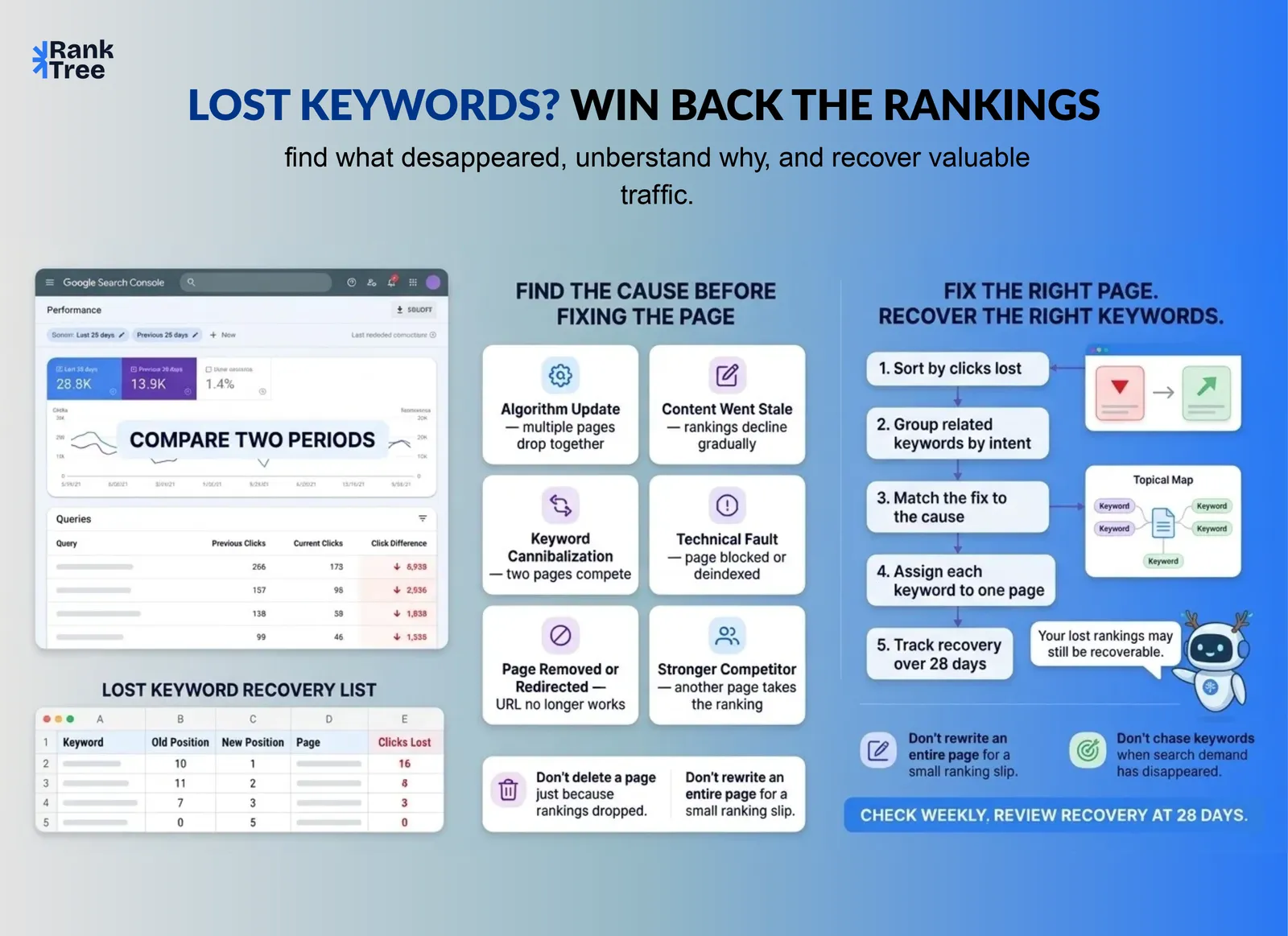
A lost keyword is a search your site used to rank for and no longer ranks for. Compare two periods in Google Search Console, list the queries that lost impressions or clicks, and this guide shows the free method, then how to sort the list and win the important ones back.
Lost rankings are traffic you already earned. Winning one back is usually cheaper than ranking for something new, because the page exists and Google already knows it.
What Are Lost Keywords?
A lost keyword is a query that used to bring your page impressions or clicks in Google Search Console and now brings none, or far fewer. The page still exists. The ranking is gone.
A keyword that fell from position 3 to 9 is dropped, not lost. It still ranks, just lower. A lost keyword has nothing meaningful left: zero impressions, or a position so deep no one sees it. The fix differs too. A dropped keyword needs a stronger page. A lost one needs a diagnosis first: did the page break, did a competitor pass you, or did demand end?
This differs from keyword visibility, which measures how visible your site is right now, and from a keyword gap, which is a keyword a competitor ranks for and you never did. A gap is someone else's ranking. A lost keyword was yours.
Term | What it means |
Lost keyword | You ranked for it before. You do not rank for it now. |
Dropped keyword | You still rank for it, but lower than before. |
Keyword gap | A competitor ranks for it. You never did. |
Never ranked | The keyword is new to you. No history on your site. |
How to Find Lost Keywords in Google Search Console?
The free method is a date comparison in Search Console. Compare the current period with an earlier one and list the queries that lost impressions or clicks. No paid tool is needed.
Step 1: Set the comparison
Open Performance, set the date range to the last 28 days, click Compare, and pick the previous 28 days. For a seasonal site, compare with the same period last year. Search Console keeps 16 months of data, so you can be sure the loss is real.
Step 2: Sort by clicks lost
In the Queries tab, sort by Clicks difference, biggest loss first. The top rows are your largest losses.
Step 3: Pick out the true losses
Look for queries with impressions before and zero, or near zero, now. Those are your lost keywords. A query that only slipped a few positions is a drop, not a loss.
Step 4: Export and record
Export the list to a sheet: old position, new position, page, clicks lost. That sheet is your recovery list.
Step 5: Check by page
In the Pages tab, sort by clicks difference and open the worst page. List the keywords tied to it. A vague drop becomes an ordered repair list.
Check the search type too: web, image, and video separately. If impressions and clicks both fell, check causes. If only clicks fell, the title or snippet may be the problem.
Small slips are normal. A drop from position 2 to 4 often reverses on its own, so do not rebuild a page over one small move. Act when the loss is large or lasts across two comparisons.
A rank tracker can help too. It shows exact positions by location and device, and alerts you when a keyword leaves the top 100. Use one when you need proof over time or report rankings to a client. Search Console alone is enough when the budget is zero.
Why Keywords Get Lost?
Most losses trace back to a short list of causes. Find the cause before you fix anything.
Cause | How to tell | First action |
Algorithm update | Many pages dropped on the same date | Check SERP volatility, then read what changed |
Content went stale | One page slid slowly over months | Refresh against the current top results |
A new page took the ranking from the old one | Merge the pages or give each one a clear keyword | |
Technical fault | The page is blocked, broken, or deindexed | Check URL Inspection and fix the fault |
Page removed or redirected | The URL is gone or points elsewhere | Restore the page or fix the redirect |
Demand dropped | The topic is seasonal or the trend ended | Check the trend first |
Stronger competitor page | One rival page now outranks you | Compare the two pages and close the gap |
One page dropped means a page problem. Many pages on one date means an update or a technical fault. A slow slide means stale content or a stronger competitor. When a group dropped together, check one page in URL Inspection before you touch any content.
What to Do After You Find Them?
Finding the list is half the work. The other half is fixing in the right order.
Step 1: Sort by value, not by count
A keyword that lost 100 clicks matters more than ten that lost one each. Sort by clicks lost, then check relevance. A lost keyword that never brought a customer is low priority.
Step 2: Group them before you rewrite
Lost keywords that share one intent belong to one page. Group the lost keywords into clusters first, then fix the group together. One refresh can win back five related keywords; five rewrites waste the same effort five times.
Step 3: Match the fix to the cause
A stale page needs fresh content, not a new title. A cannibalized page needs a merge, not more words. A technical fault needs a fix, not a rewrite.
Step 4: Give the page a clear home
Map the recovered keywords into your topical map, so each keyword has one page.
Step 5: Track weekly, judge monthly
Re-check after two weeks, then after four. Recovery is slow. A keyword back on page 2 in two weeks is moving the right way. Judge at 28 days, not at 7.
Three things not to do. Do not delete the page: a lost ranking is easier to win back than a new one. Do not rewrite the whole page for a small slip. Do not chase keywords that lost demand: a dead trend will not return.
A Worked Example: The Method on One Page
Take the page with the biggest clicks loss. Open its queries, compare the last 28 days with the previous 28, and sort by clicks difference. The top rows are your lost keywords for that page.
Group those rows by intent: rows asking the same question in different words form one group. Check the cause for the group, not each row. If the page went stale, refresh it once for the group. If a new page stole the ranking, decide which page keeps the keyword, then merge or redirect the other one.
Record the old and new positions and the date, then re-check in 28 days. If the group moved toward page 1, the fix worked. If nothing moved, the cause was wrong, and you re-diagnose before changing anything else.
This example uses your own data, so it has no invented numbers. The method is the same on every site.
Final Words
Lost keywords are not a mystery. They are a list you can pull from your own data in ten minutes, sort by value, and fix in order. Check monthly, fix the biggest losses first, and group related keywords before you rewrite. The rankings you earned are the cheapest traffic you will ever win.
FAQs
What are lost keywords in SEO?
Lost keywords are searches your site used to rank for and no longer ranks for. The page still exists, but it stopped getting impressions or clicks for those queries.
How do I find lost keywords in Google Search Console for free?
Open Performance, set the date range to the last 28 days, and compare it with the previous 28 days. In the Queries tab, sort by clicks difference. Queries with impressions before and zero now are your lost keywords.
How often should I check for lost keywords?
Check once a month. Check weekly after a Google update or a big site change.
Can I recover a lost keyword ranking?
Yes, in most cases, if the page still exists and you fix the cause. Refresh stale content, merge cannibalized pages, or fix the technical fault. Recovery takes weeks, not days, so judge at 28 days.
What is the difference between a lost keyword and a keyword gap?
A lost keyword is your own past ranking that disappeared. A keyword gap is one a competitor ranks for and you never did.